
Markers
This page is about the Micrio dashboard version 3 (2024), which is the latest version. Use the link below to navigate to the previous version.
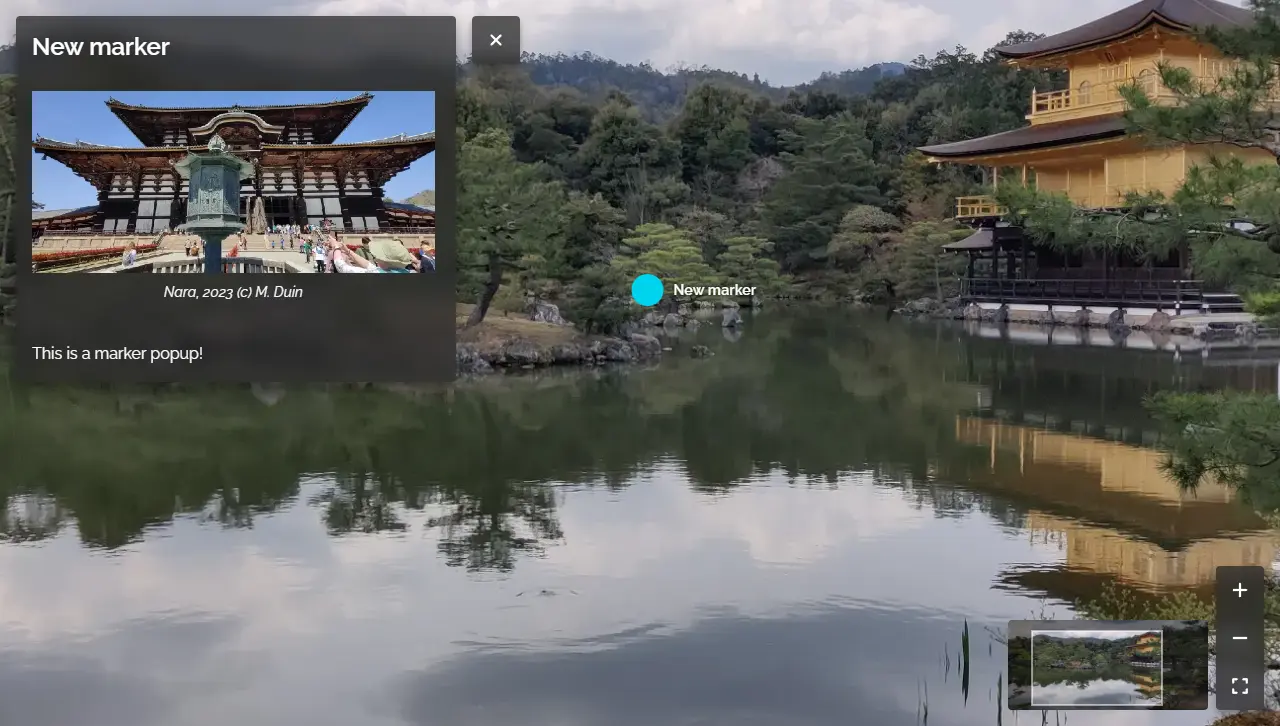
Markers are a powerful way to tell the story behind your images. A marker (or hotspot) can represent different data about an area or detail of the image.
A marker manifests itself as a clickable, button on top of the image. What happens when you click, can be several things:
- A popup can open with text, audio, images
- A full-window popover can open showing a full size video
- A custom page can be opened
- Or, using JavaScript, you can let it trigger any custom action inside your own website.
Adding a marker
Click the "Create New Marker" button in the right panel, and then click the position in the image where you want to create it.
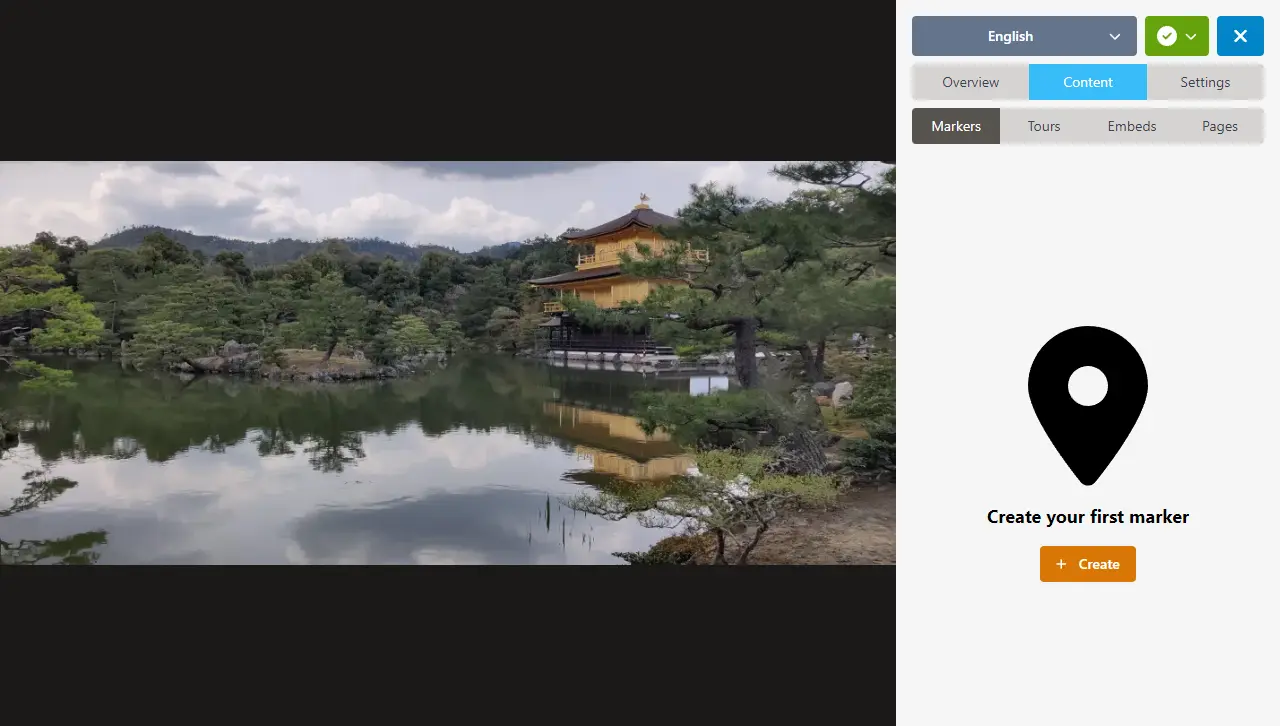
How to edit a marker
To edit a marker, first select the marker that you want to edit in your image, or from the list in the left panel, and then the editor panel will be shown.
After creating a new marker or selecting an existing one, the opened marker will light up in the image itself.
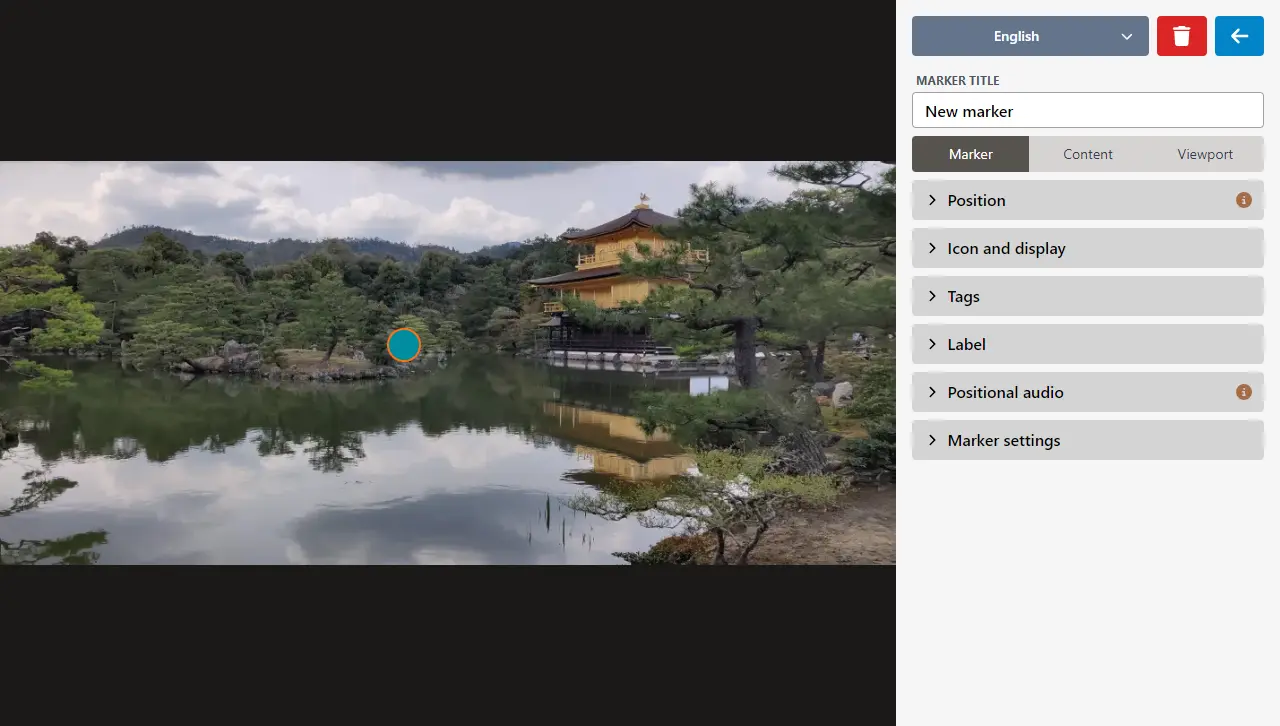
When a marker is opened, you can freely move it to any other location in the image.
Marker setting panels

The panel on the right shows the selected marker settings and has 3 tabs:
Under Marker (the default tab), you can set the marker's in-image element options, such as position and icon.
Popup content contains the marker popup content settings. You can add text, photos, videos, and even embeds from YouTube or Vimeo.
Under Advanced you can set a custom CSS classname to style the marker and popup, create a video tour that starts playing when the marker is opened, and add custom JSON that will be published with the individual marker.
Styling Markers
Markers are incredibly versatile objects. By default, they simply show a popup that has information. But you can do much more with them -- they can also be used as internal links to other Micrio images, or to activate custom behavior inside your own implementation.
See this page for a guide to use CSS to style your markers.